Categories
Guides in kataba are sorted into categories. A category can hold subcategories and guides at any level, so together they form a tree of any depth. Every guide lives in exactly one category. Only admins create, change and delete categories.
Creating a category
Admins see extra buttons above the categories:
- on the home page, New category creates a top-level category;
- in a category, New subcategory creates one inside it, and Edit category opens the category's settings.
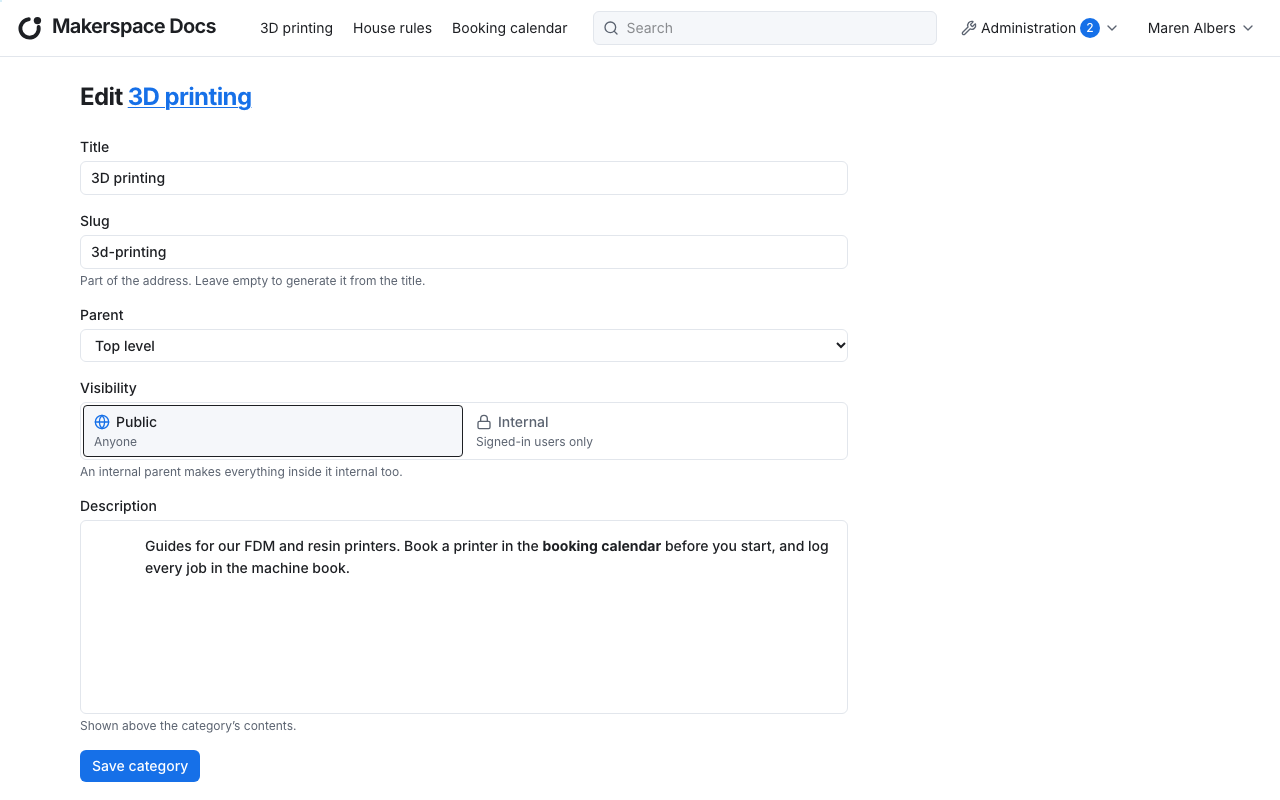
A new category needs a title; everything else is optional:
- The slug is the category's part of the address. kataba makes it from the title if you leave it empty. It may only contain lowercase letters, digits and single hyphens, and must be unique among the category's siblings. A category's address is the slugs of its ancestors and its own, e.g.
/c/workshop/3d-printing. - The parent is the category it lives in, or Top level.
- The visibility, see below.
- The description is rich text shown above the category's contents, for example to say what belongs in it.
Create category creates it. It goes last among its siblings if they are sorted manually.
Editing a category
Edit category in a category leads to the same form, with the category's image, its child order and the option to delete it below.
Moving a category means choosing another parent: it takes its subcategories and guides along. A category cannot be moved into itself or one of its subcategories.
Changing the slug or moving a category changes its address and the address of everything below it. The old address stops working, but labels with a QR code keep working: they lead to the category's id, not to its slugs.
Category image
A category with a category image shows it in the category grid; one without is shown as a coloured tile. Add category image uploads a photo; drag the frame to choose the section in the format 4:3 that is shown. You can crop it again later, or replace it. Removing the image makes the category a coloured tile again.
Visibility
A category is public, open to anyone, or internal, for signed-in users only. What counts is the effective visibility: the most restrictive visibility along the chain of categories above. An internal category makes everything inside it internal too, its subcategories and guides included, whatever they are set to. This holds everywhere: in the category grids, in search, in the menu and for the images.
Child order
The child order of a category says how its subcategories and guides are listed:
- Alphabetical: by title.
- Manual: in an order you set with the arrows beside each subcategory and guide. Subcategories and guides are arranged separately; subcategories always come first.
Switch the order in the Child order section of the category's form. Switching to manual keeps the current order as the start; new subcategories and guides go last.
The top level has no category of its own: its child order is a setting, and its categories are arranged on the settings page under Top-level categories.
Deleting a category
Only an empty category can be deleted: one without subcategories and without guides, deleted guides included, since they could still be restored. Move or delete its contents first, then use Delete category at the bottom of its form. A deleted category is gone for good, and menu items that linked to it go with it.