Reading guides
A guide in kataba is a set of step-by-step instructions with annotated photos. Guides are sorted into categories, which can hold subcategories and guides at any level. Reading needs no account: everything public is open to everyone. This page shows where to find guides and what you see in one.
Finding a guide
Categories
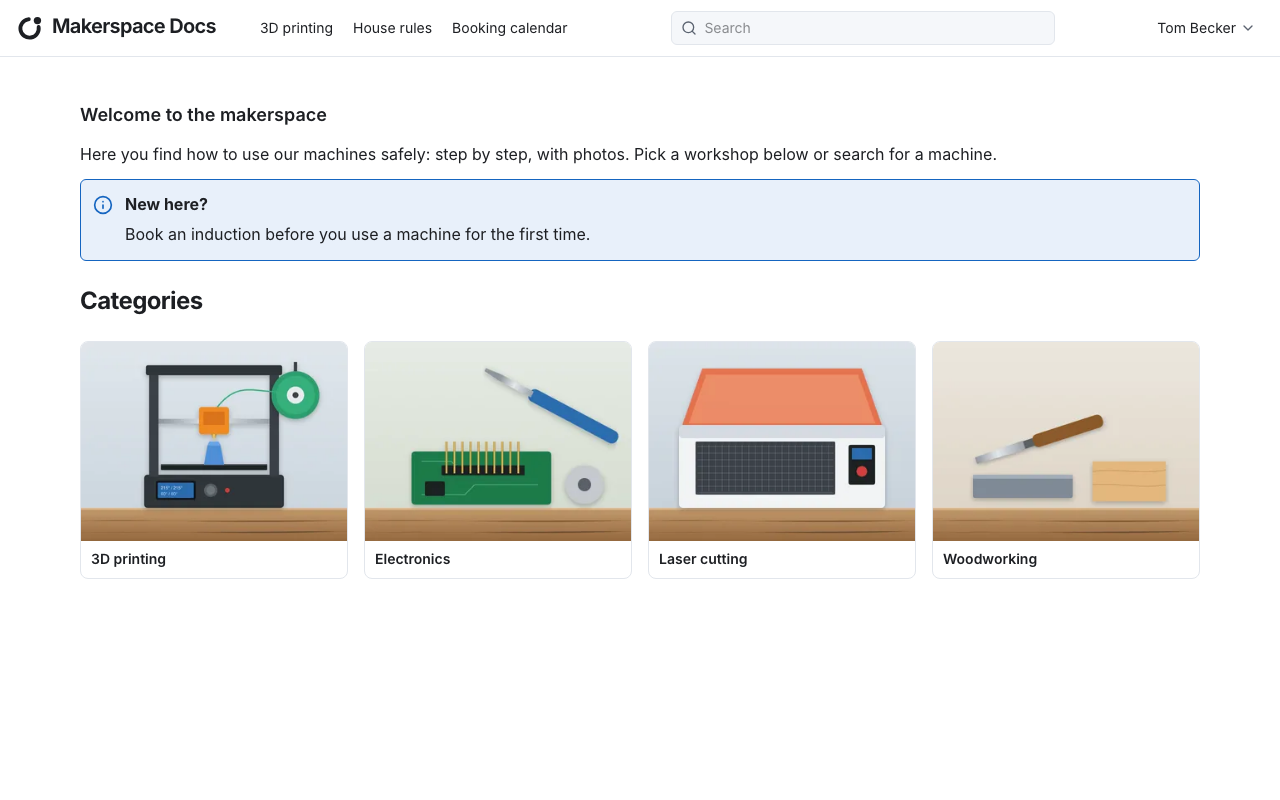
kataba's first screen, at the instance's address, shows the home page, if the admins wrote one, followed by the top-level categories. A category with a category image shows it; one without is shown as a coloured tile.
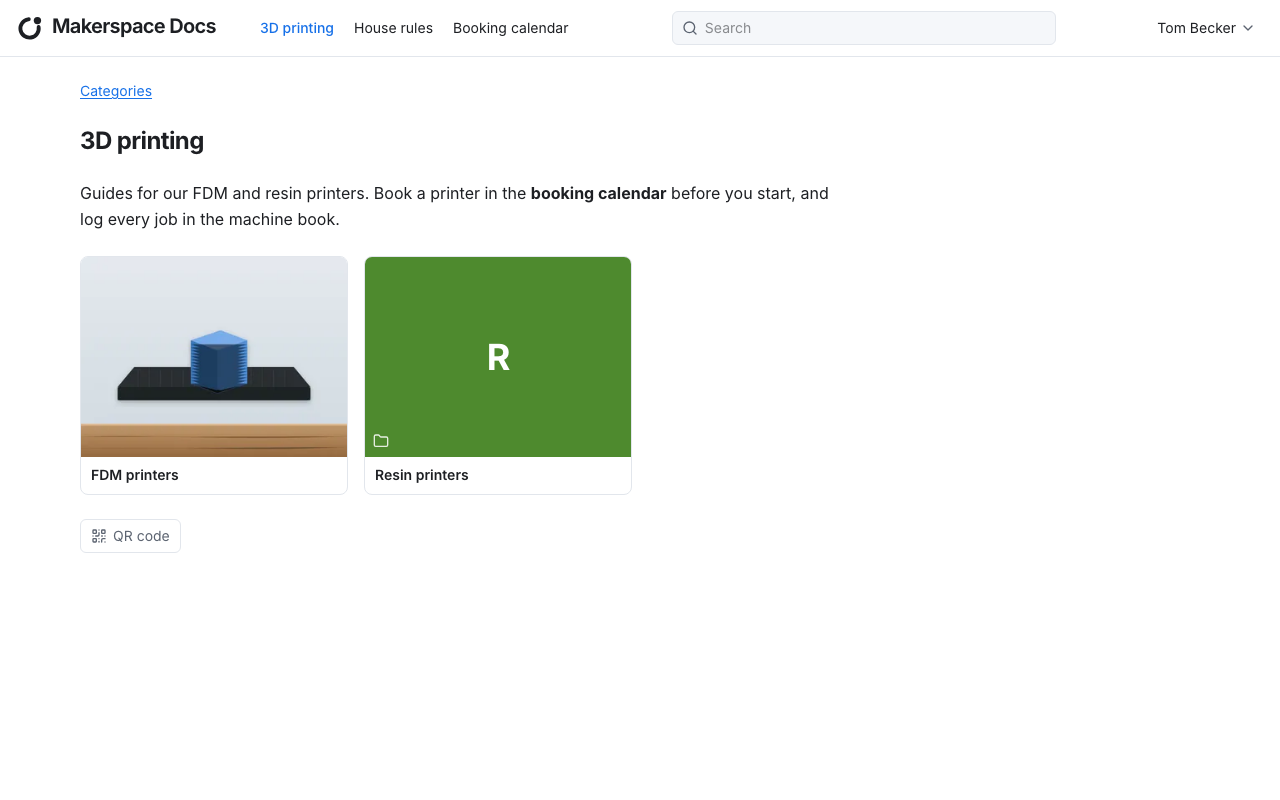
Opening a category shows its subcategories and guides. The breadcrumb at the top leads back up the tree.
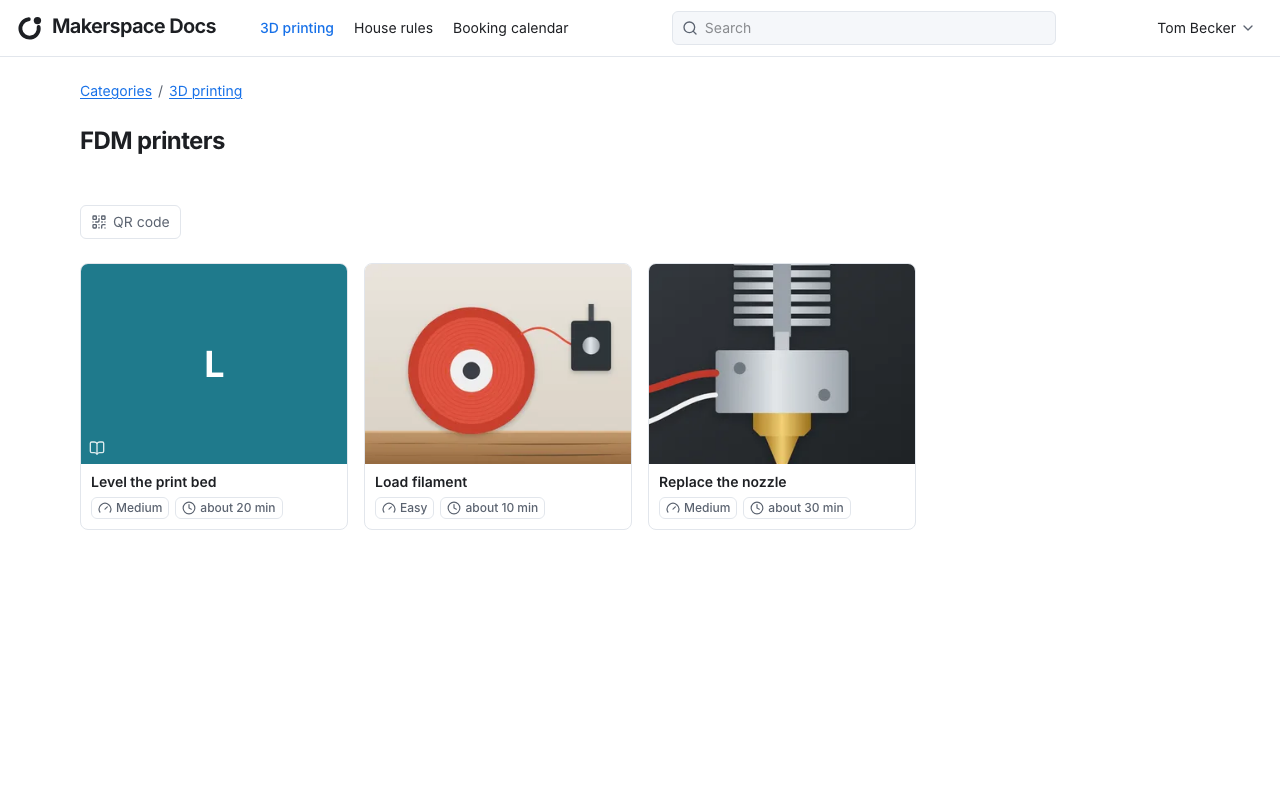
In a category that holds guides, each guide shows its cover image (or a coloured tile), its title and, where the author set them, its difficulty and estimated duration.
Search
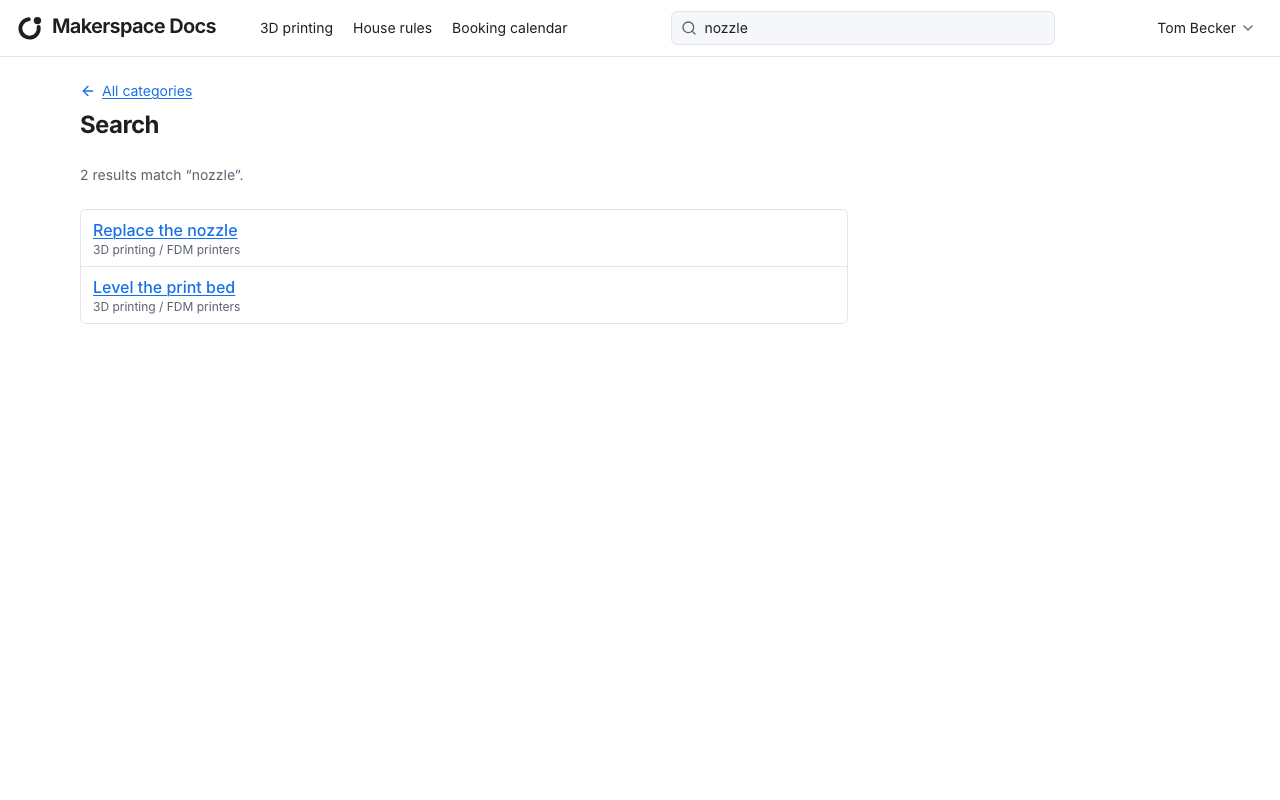
The search field in the title bar searches all guides and pages you may see: titles, descriptions, step titles, step lines and step content. Press Enter to see the results; the best matches come first.
The menu
Beside the logo, the title bar can show a menu of links that the admins put together: to categories, guides, pages or other websites. On narrow screens it folds into a button with three lines. A menu item you may not open is not shown to you.
Reading a guide
The guide's header
At the top of a guide you find its title and, below it, what the author set about it:
- its difficulty (easy, medium or hard) and its estimated duration,
- who owns the guide, who last edited it and when, and its license, which says how you may share and reuse it,
- the protective equipment you must wear to follow it, as pictograms,
- a description, and attachments to download, such as drawings, 3D models or manuals. Attachments are always downloaded, never opened in the browser.
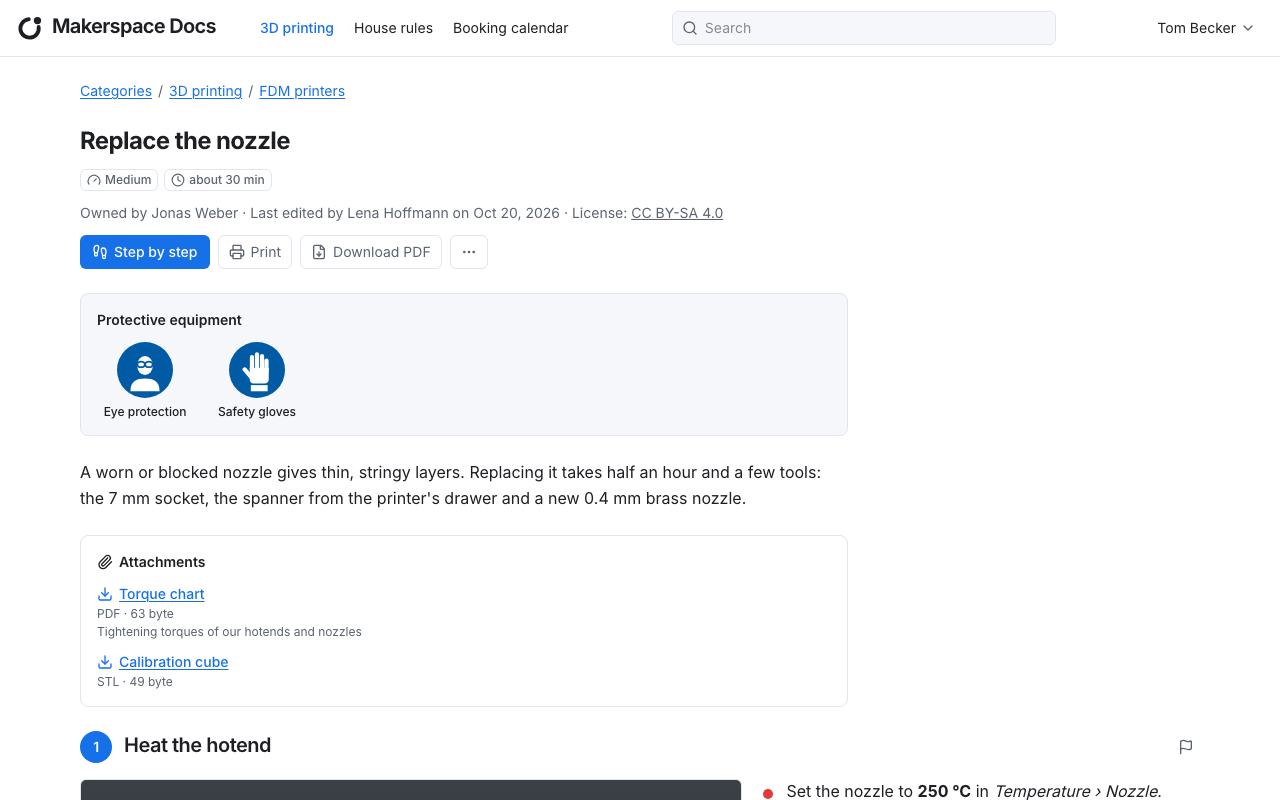
The buttons below the header open the guide step by step, print it or download it as a PDF. The QR code button downloads a label for the guide (signed-in users find it in the guide actions menu, "…", instead), see Labels with a QR code.
Steps
Below the header follow the guide's steps, numbered from 1. A step has up to three step images on the left and its step lines on the right; further content, such as a callout, can follow below the lines.
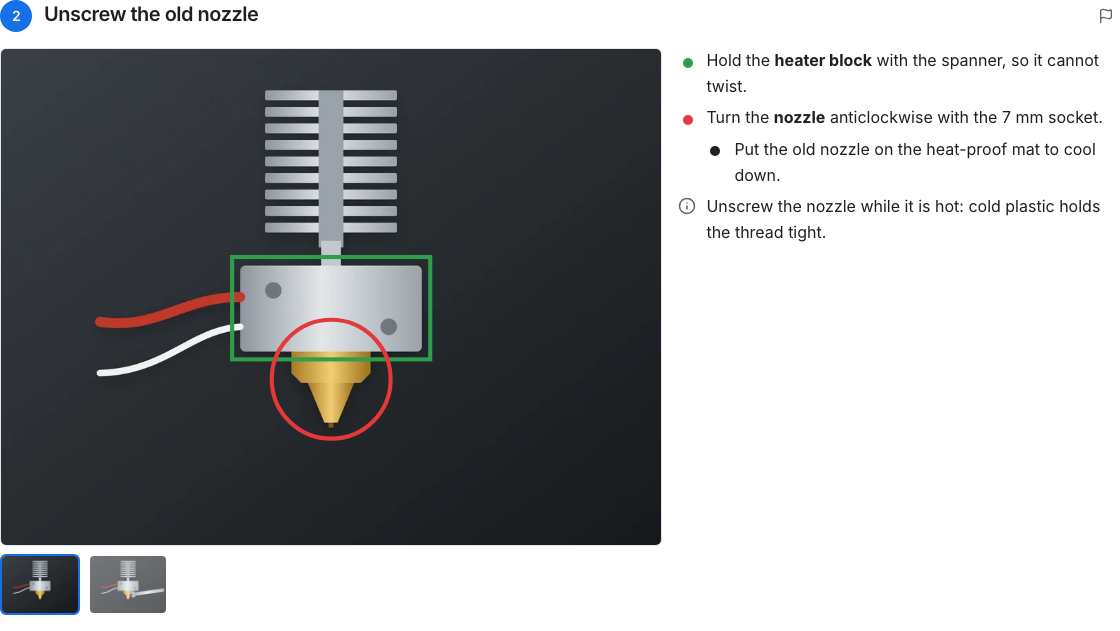
- Step images are photos in the format 4:3. If a step has more than one, the small images below the large one switch between them.
- Annotations are rectangles and circles drawn on a step image to point at something.
- Step lines say what to do. A line with a coloured bullet belongs to the annotations of the same colour: in the step above, the green line explains the green rectangle, the red line the red circle. A black bullet has no annotations. Lines can be indented below the one before, to add detail.
- Icon lines have an icon instead of a bullet: caution for a danger, note for a hint and reminder for something not to forget.
- Callouts are highlighted boxes in the step's content or the guide's description, as a warning, an error, a note or a success, each with its own icon and colour.
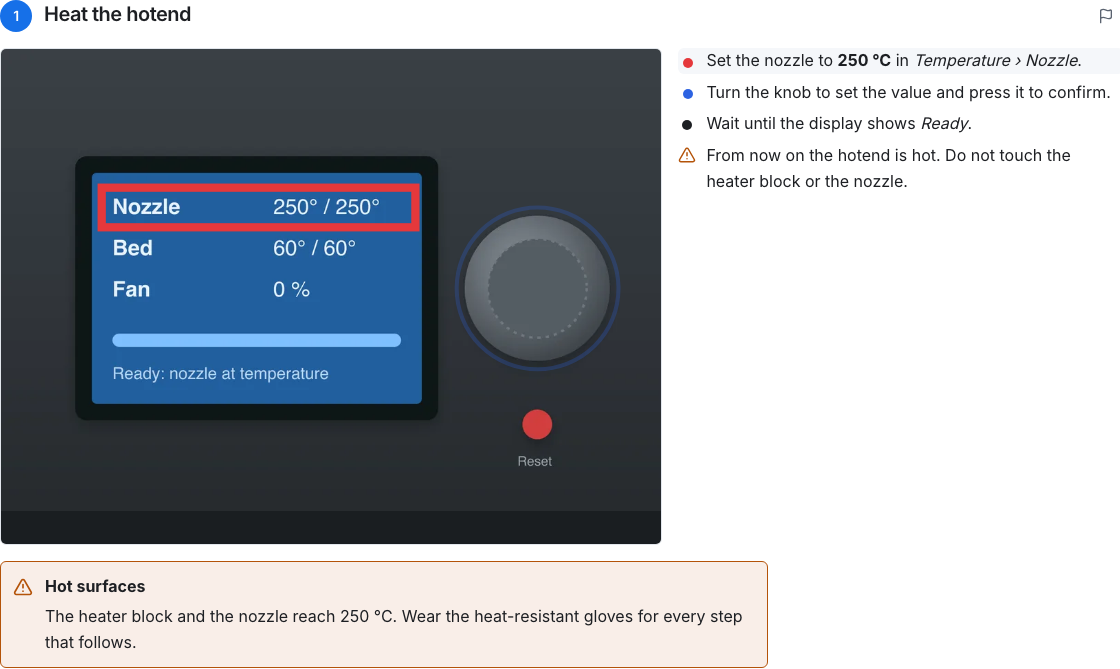
Clicking a coloured step line highlights its annotations and fades the rest. If the annotations are on another image of the step, kataba switches to that image.
Step by step
Step by step shows a guide on a tablet or phone at the machine, one step per screen. It starts with an overview like a title slide: the guide's title over its cover image, followed by its difficulty, estimated duration, protective equipment, description and attachments.
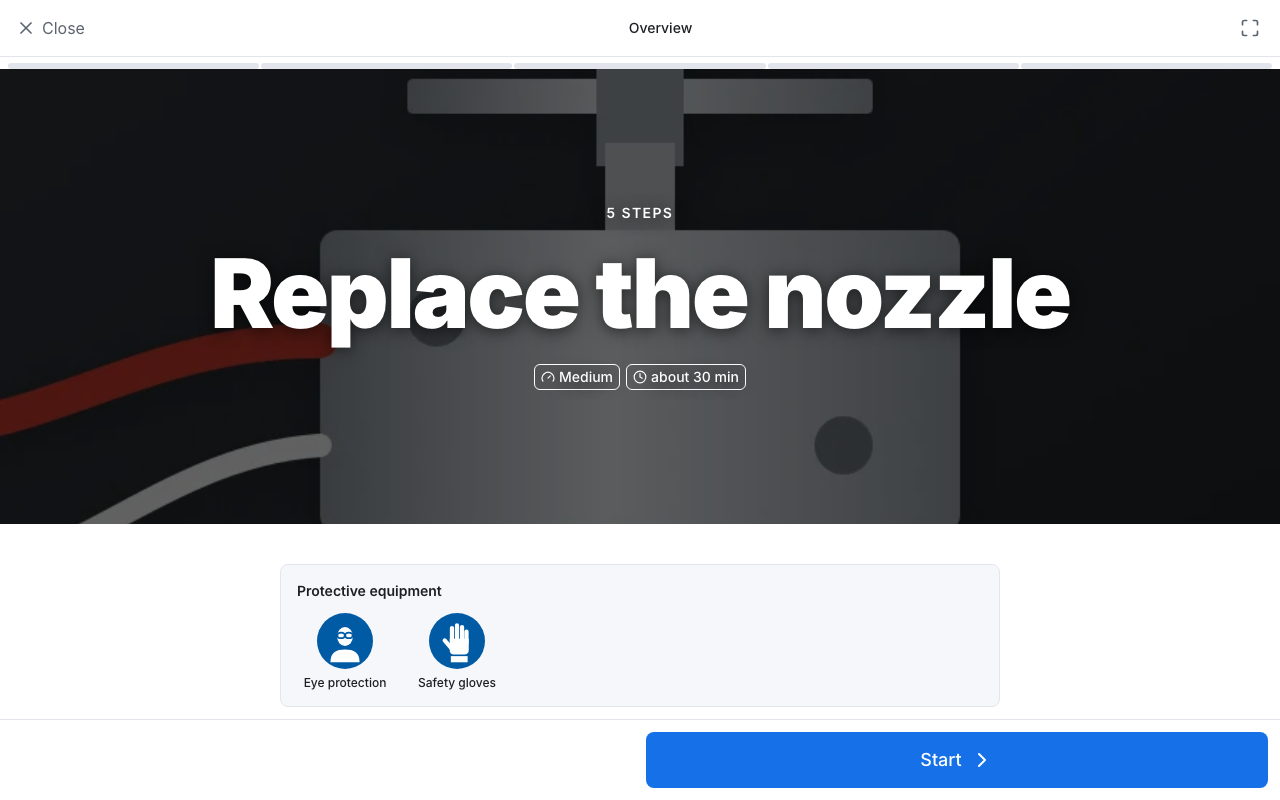
Start opens the first step. Move between the steps by swiping left or right, with the arrow keys Left and Right, or with the large Previous and Next buttons. The bar at the top shows where you are; Full screen hides the browser around the guide.
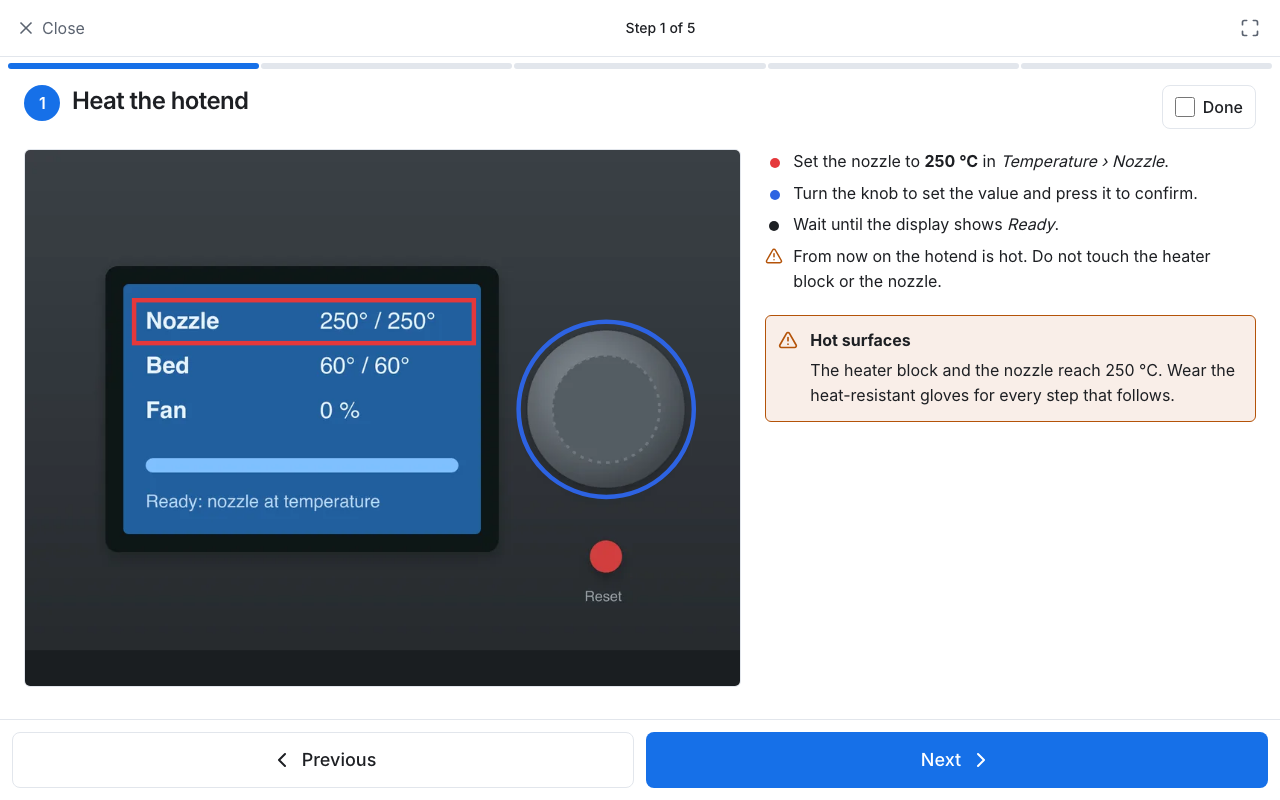
While the view is open, the screen of your device stays on. Tick Done on a step to check it off. Your progress is stored only in your browser and only for the version of the guide you are reading: once the author publishes a new version, it starts over.
Printing and PDF
Print prints the guide in a layout made for paper. Download PDF gives you the same as a PDF file to keep or pass on. Both end with an attribution line that names the instance, the guide's address, its owner, its last edit and its license.
Reporting a problem
If a guide no longer matches the machine, or a step is hard to follow, tell its authors. The flag beside a step's heading reports a problem with that step; Something wrong or unclear? Report a problem at the end of the guide reports one with the guide as a whole. Describe what is wrong in a few words, at most 1000 characters, and send it.
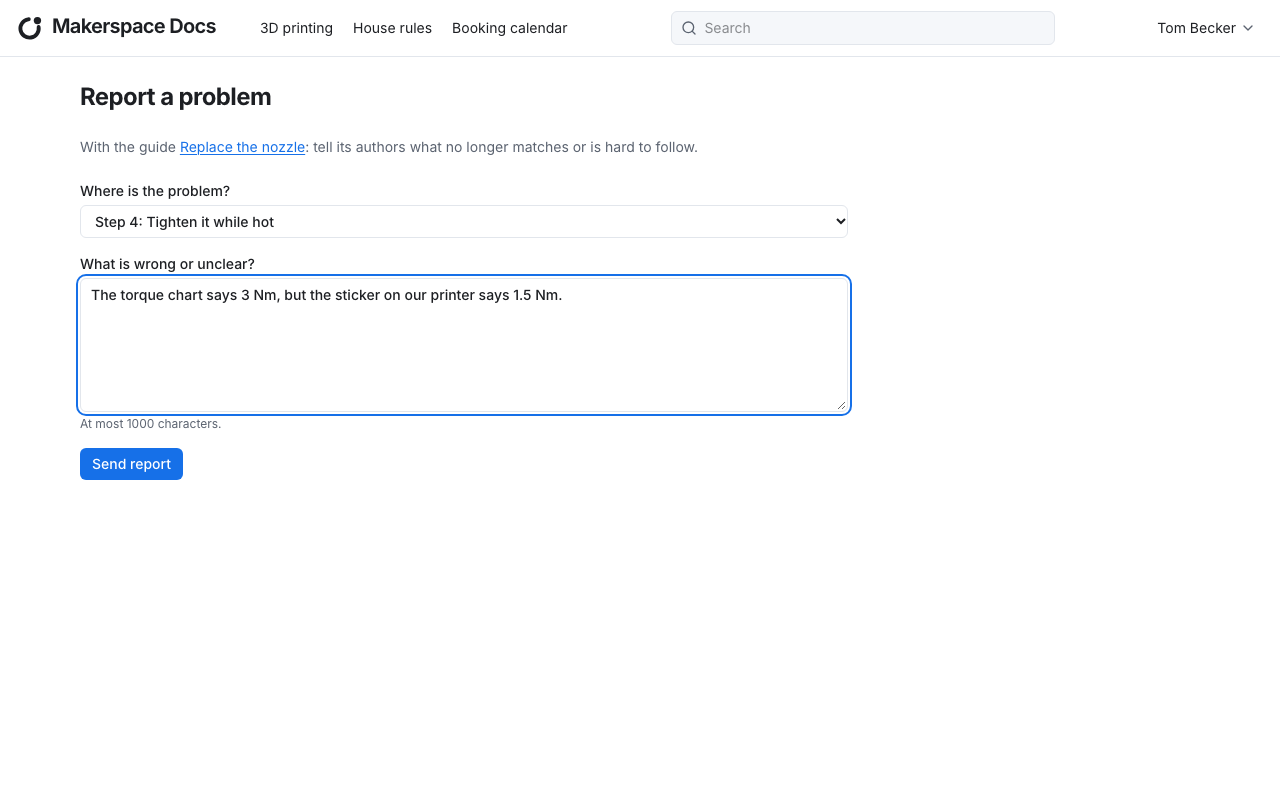
Anyone who can read a guide can report a problem, without signing in. When you are signed in, the report carries your name, so the authors know whom to ask; a guest's report stays anonymous. Reporting many problems in a short time is limited, to keep spam out.
Labels with a QR code
The QR code button of a guide, and the one of a category, downloads a label: a sticker-sized PDF with a QR code, the title and the instance's name, to put on a machine, a cabinet or a tool wall. The QR code leads to the guide or category even after it was renamed or moved. Admins set the labels' size.
Signing in
Guests, who are not signed in, see everything that is published and public. Content that is internal is shown only to signed-in users. Sign in in the title bar leads to your organisation's sign-in page; kataba has no passwords of its own.
What you may do once signed in depends on your role, which comes from your groups at the organisation:
| Role | May |
|---|---|
| Viewer | read internal content as well |
| Author | also write guides, see Writing guides |
| Admin | also manage categories, pages, the menu and settings, see the Administration handbook |
Language and theme
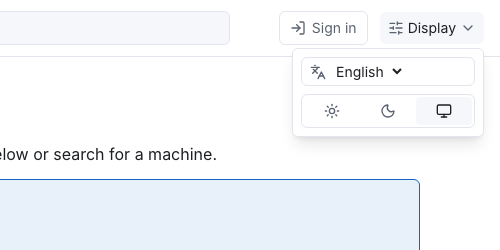
kataba speaks English and German. As a guest, the Display menu beside Sign in sets the language of the interface and the colour theme: light, dark or the one of your system.
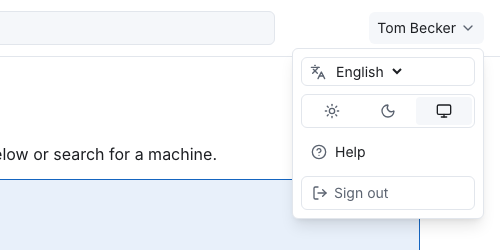
Signed in, you find the same in the user menu under your name, together with Help, which opens this handbook in a new tab, and Sign out.
The language only changes the interface, not the guides: each guide is written in the language its author chose.