Settings
Settings are instance-wide values that admins change while kataba is running, under Administration → Settings. They are split into the tabs General, Content, Email and Access. Each tab saves only its own settings, with its Save settings (in Email: Save email settings), and leaves the other tabs' as they are; what you typed in a tab stays there when you switch to another and back, until you leave the page. What concerns the server, such as the database or the sign-in, is not a setting but part of the configuration.
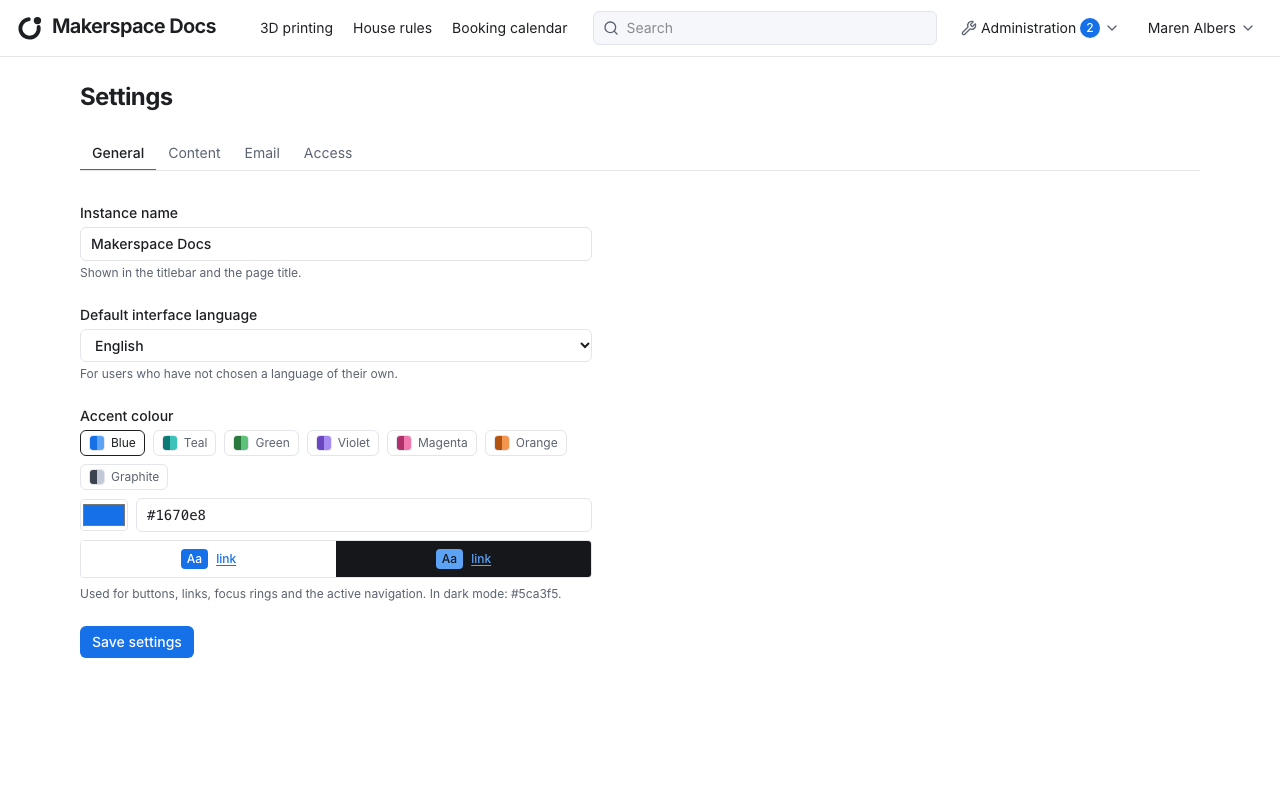
| Tab | Setting | What it does | At first |
|---|---|---|---|
| General | Instance name | Shown in the title bar, in the browser's tab, on labels and in the attribution line of printed guides. At most 60 characters. | kataba |
| General | Default interface language | The language of kataba's interface for everyone who has not chosen one of their own. | English |
| General | Accent colour | The colour of buttons, links, focus rings and the active navigation, see below. | Blue |
| Content | Default license | The license new guides start with. A change leaves existing guides as they are. | All rights reserved |
| Content | Maximum attachment size in MB | The largest file that may be attached to a guide, 1 to 1024 MB. Attachments already uploaded stay. | 50 |
| Content | Label size in mm | Width and height of the labels with a QR code. Wider than high puts the QR code beside the text, otherwise above it. | 50 × 30 |
| Content | Child order of the top level | Whether the top-level categories are listed alphabetically or in an order you set, see below. | Alphabetical |
| Access | Session lifetime in days | How long users stay signed in, 1 to 365 days. A change applies to a session from its user's next sign-in or renewal on. | 30 |
Accent colour
Choose one of the suggested colours or any other, with the colour picker or as a hex value such as #1670e8. kataba adjusts it where needed, so that text on it and links in it stay readable in light and in dark mode; the preview below shows both, and the hint below names the values it uses. The accent colour is only for the interface: it has nothing to do with the colours of step lines and annotations.
Top-level categories
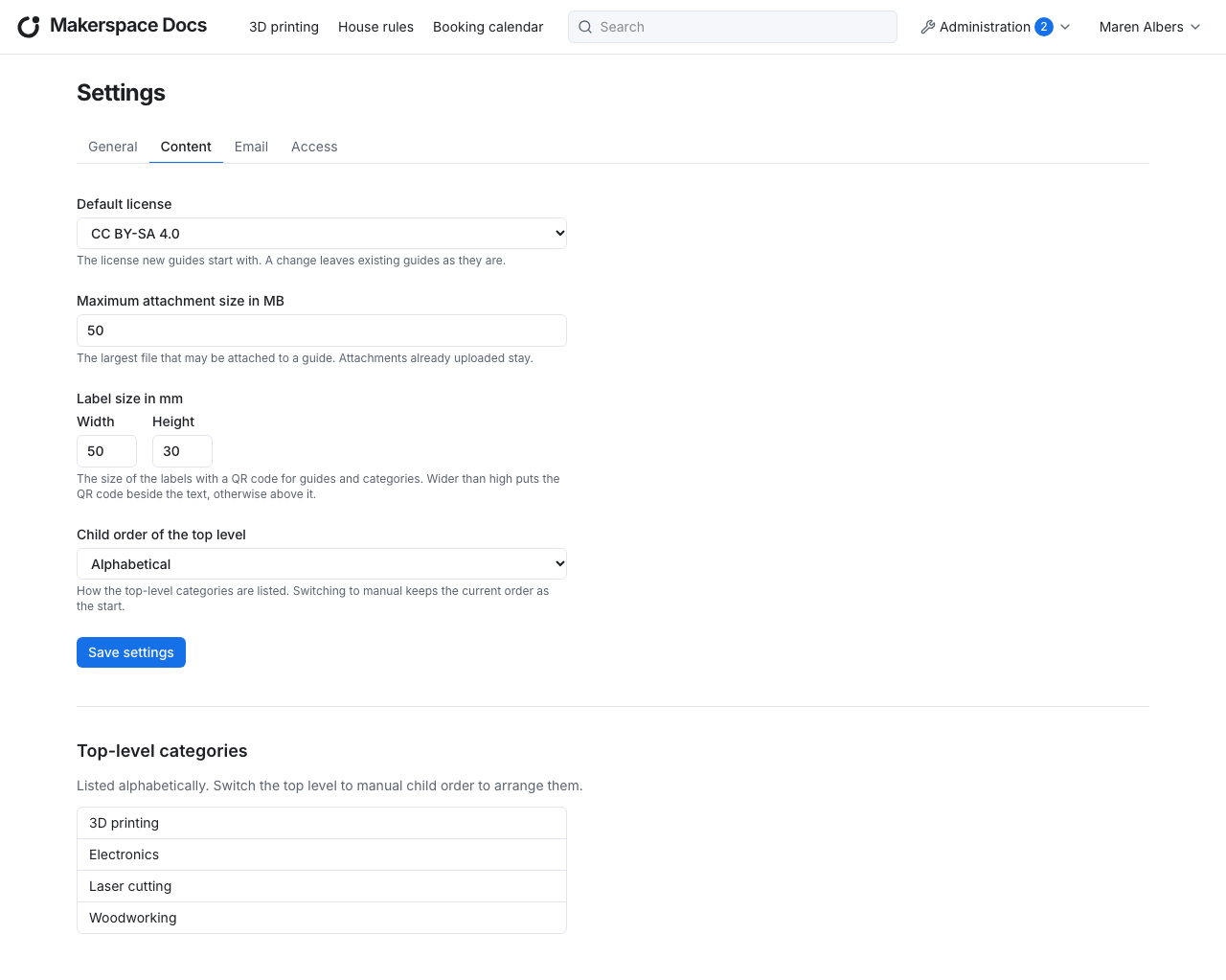
The categories at the top level have no parent whose child order could say how they are listed. Their child order is the setting Child order of the top level instead. Set to Manual, the section Top-level categories below the settings of the tab Content arranges them with the arrows; switching to manual keeps the current order as the start, and new categories go last.
Email
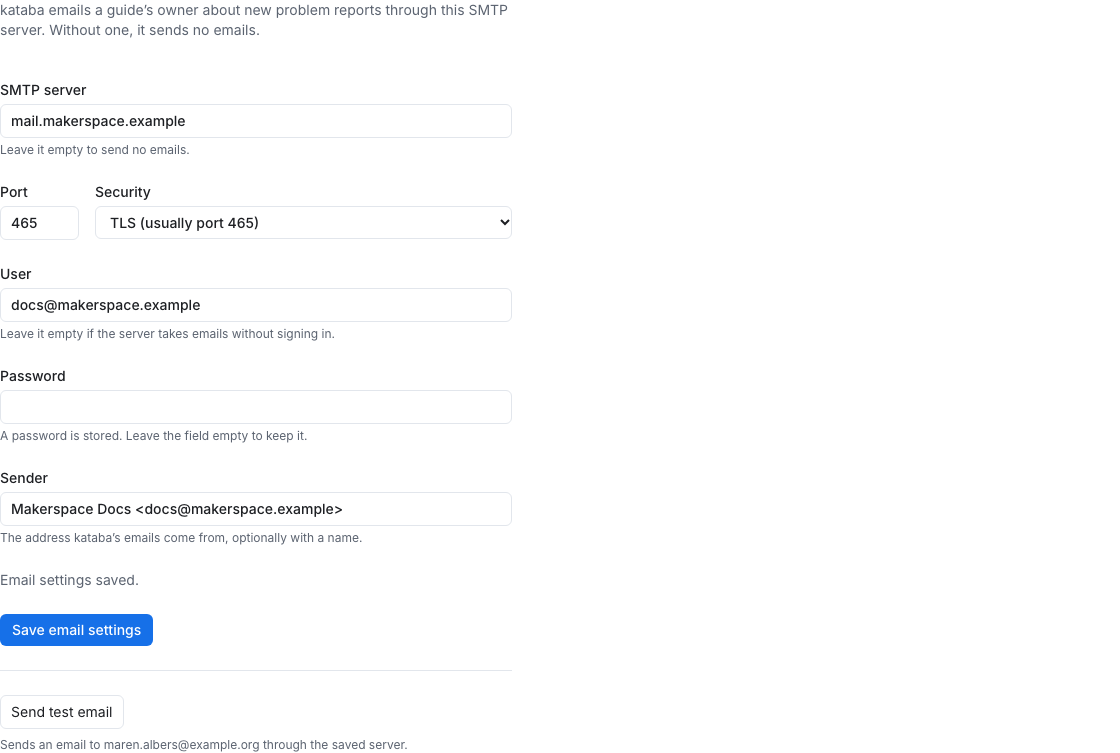
kataba sends one kind of email: when a reader reports a problem with a guide, the guide's owner hears of it, in their interface language, with a link to the problem reports. If the owner is no longer an author, every admin gets it instead. The link uses AUTH_URL. kataba sends them through the SMTP server in the tab Email, saved with Save email settings; without a server, it sends no emails, and everything else works the same.
| Setting | What it is |
|---|---|
| SMTP server | The host name of the SMTP server, e.g. mail.example.com. Empty for no emails. |
| Port and Security | TLS connects encrypted from the start, usually on port 465; STARTTLS upgrades the connection and refuses to go on unencrypted, usually on port 587; None, unencrypted only suits a server on the same machine or network, usually on port 25. |
| User and Password | What kataba signs in to the server with; no user for a server that takes emails without signing in. The password is never shown again: leave its field empty to keep it. kataba stores it encrypted with AUTH_SECRET; if that changes, enter the password again. |
| Sender | The address kataba's emails come from, optionally with a name, e.g. kataba <kataba@example.com>. |
Once a server is saved, Send test email sends an email to your own address through it, and shows the server's error if that fails.
Emails go out after the report is saved. If the SMTP server cannot be reached, the report is kept anyway and kataba logs the error; the email is not retried. Users find their reports in kataba either way.
Roles
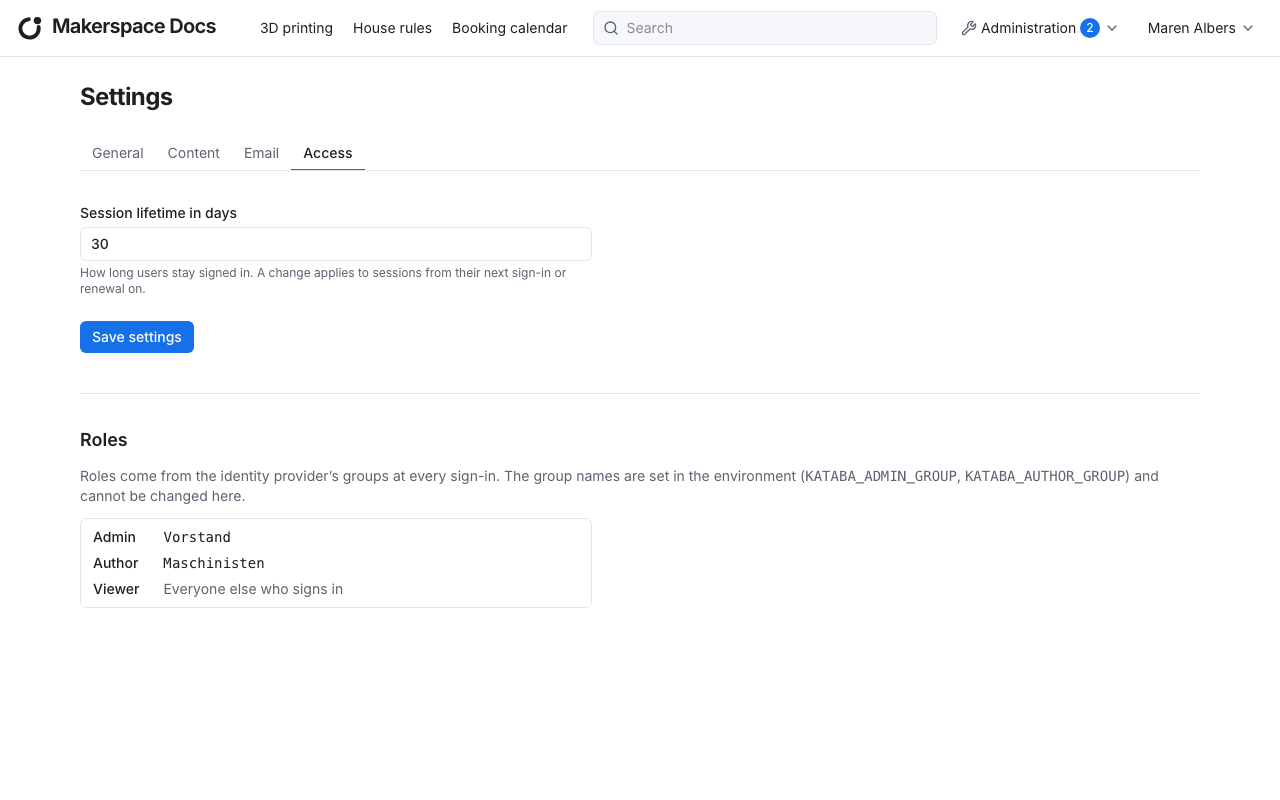
The section Roles in the tab Access shows which groups of the identity provider make users admins and authors. It is read-only: the groups are set in the configuration, so that there is always a way to the first admin.